-1.png?height=120&name=1f83348385b37474578a1d1ffd78b3c8adef03e0%20(1)-1.png)
The purpose of this article is to explain what the Order Rules feature is, how you can use it to keep your spend under control, and how to set them up for your organization.
This article is part of a three part series on Order Rules:
- How (and Why) to Create an Order Rule
- Placing an Order that Violates an Order Rule
- Reviewing an Order that Violated an Order Rule
The ability to create, edit, and view Order Rules is a feature available to Organization Administrators only.
This article will outline the following:
- What are Order Rules?
- Why would I want to use Order Rules in my organization?
- How do I set up Order Rules?
What are Order Rules?
Order Rules allow an Organization Administrator to set up controls around the orders being placed by any users with a lower level of permissions (Office Group Admins, Office Admins, Purchasers, etc). This feature allows Organization Administrators to select from a set of conditions to manage certain purchasing behaviors within CureMint.
Why would I want to use Order Rules?
Order Rules are a valuable tool for maintaining formulary and budget adherence. By requiring administrator approval on an order, as well as giving them an opportunity to edit the order, prior to the order being sent to a vendor organizations can rein in extraneous spending.
How do I set up Order Rules?
To create an Order Rules for your organization, visit the Order Rules section under Procure in the left side panel and select “Create Order Rule.” As a reminder, this section will only be available to users with Administrator permissions at the Organization level.
Please Note: Although only Organization Administrators are the only user types allowed to create and set Order Rules, Office Group and Office-level Administrators can be made the designated approver.
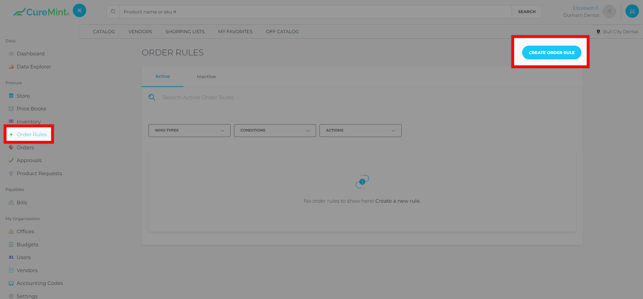
Once you have selected the blue “Create Order Rule” button, a new window will appear where you can set your Order Rule parameters. When creating an Order Rule you want to consider the following:
- Who is it you want to to be impacted — this can be an individual person or a group of people
- Condition: What behavior do you want to restrict or manage
- Action: Is the goal of your Order Rule to be able to review the order before it gets sent to the vendor for fulfillment, or merely just to be notified that a certain type of order was placed?
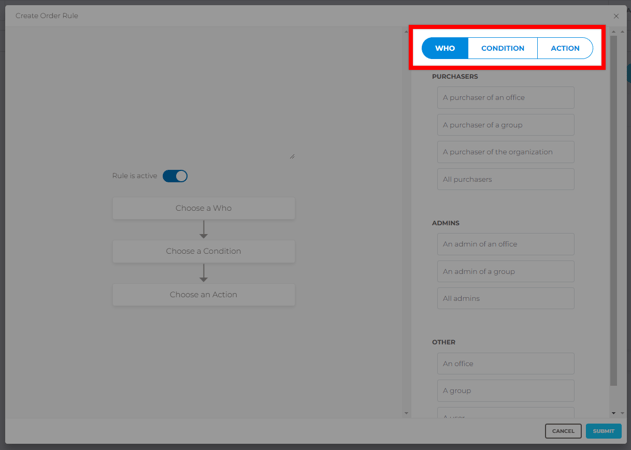
A selection from each of these three parameters is required in order to create an Order Rule.
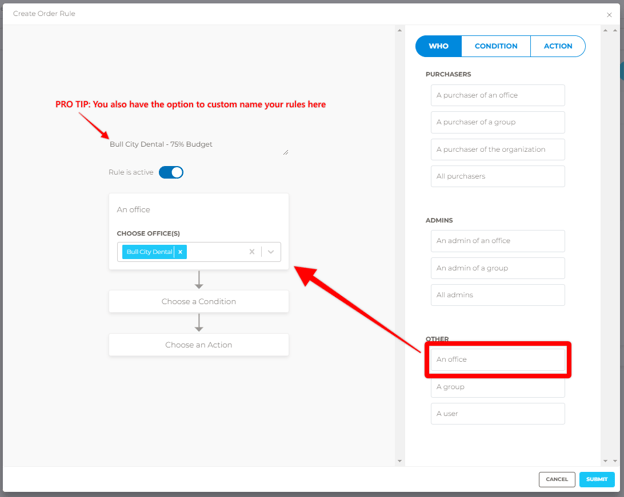
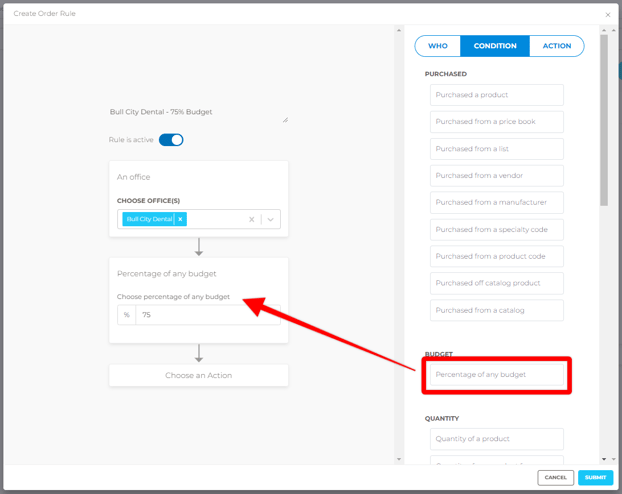
EXAMPLE: The following images will demonstrate how to create an Order Rule for offices approaching their monthly budget threshold. This can be helpful for managing offices that consistently spend over their budget.
Step 1: Who
Step 2: Condition
Step 3: Action
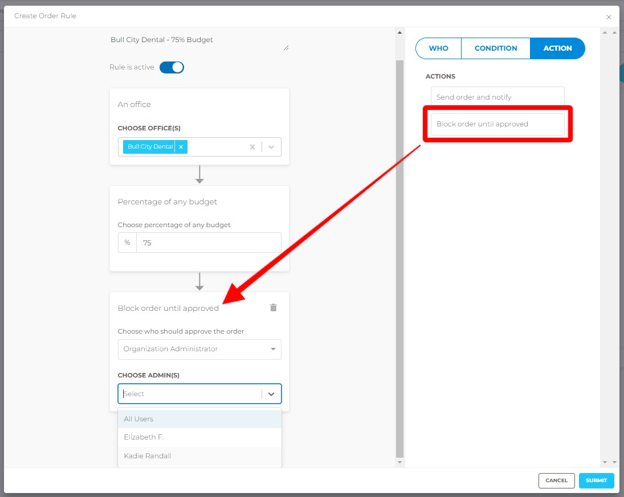
Please Note: When making your selections for "Who," you will need to choose both a permission level AND a specific person/people. You can also choose "All Users" which will assign approver status to all users assigned the permission level selected.
When you are done making your selections, click Submit to create your Order Rule. When your Order Rule is created it will take effect immediately. If you need to pause/deactivate an Order Rule, you can always do that by toggling the on/off switch on the main Order Rules page as seen in the image below:
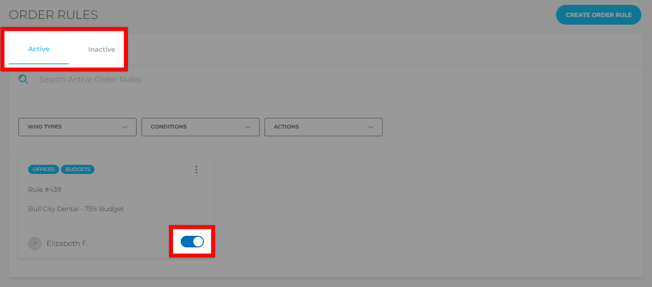
Now that this Order Rule has been created, any orders placed for the Packer Office that will exceed 75% of the monthly budget be sent to Organization Administrators to review and make changes to before it goes to the vendor to be processed.
Still have more questions? Please reach out to support@curemint.io.