-1.png?height=120&name=1f83348385b37474578a1d1ffd78b3c8adef03e0%20(1)-1.png)
The purpose of this article is to explain what the options that a purchaser has when they are trying to place an order that contains Order Rule Violations.
This article is part of a three part series on Order Rules:
- How (and Why) to Create an Order Rule
- Placing an Order that Violates an Order Rule
- Reviewing an Order that Violated an Order Rule
When a purchaser tries to place an order that is in violation of an Order Rule, they have the following options:
- Edit the order prior to placing it so that it no longer violates the Order Rule
- Place the order as is, regardless of the violations.
- If after placing the order the purchaser would like to adjust the order to make it compliant with the Order Rule, they have the option to do so to bypass the approval process.
- Alternatively, the order will be sent to the designated approver(s) to review before it gets sent to the vendor. This gives the approver the opportunity to review, edit, approve, or deny the order.
To demonstrate this, we will use the same example outlined in Order Rules: How (and Why) to Create an Order Rule. In that example, an Order Rule was created that required approval for any orders placed after the Bull City Dental office had spent 75% of their monthly allotted budget.
In the images below, we can see what happens when a purchaser from the Bull City Dental office tries to place an order that will violate this rule.
Option 1: Edit the order prior to placing it so that it is compliant with the Order Rule:
In the below image, you can see that the purchaser is trying to place an order that will take the office over the 75% budget threshold and therefore violates this order rule.
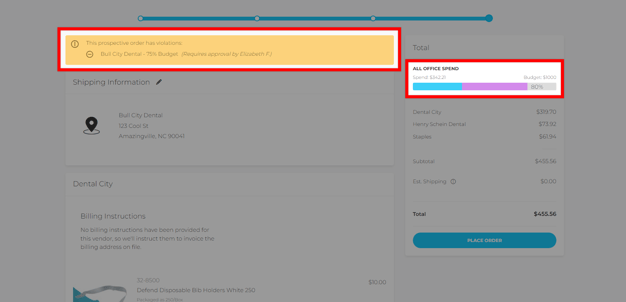
To resolve these violations, the purchaser has the option to remove some items for their cart in order to reduce the total so the order will not exceed the 75% of the budget threshold.
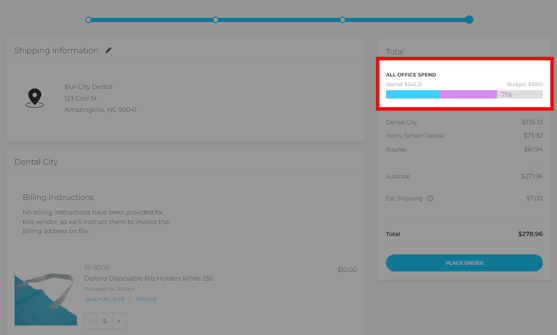
In the image below, you can see that by reducing the quantities purchased of the items in the cart, the order total decreased, which reduced the prospective budget spend from 75% to 71%.
This order no longer violates any Order Rules so the purchaser can place the order to be sent directly to the vendor without requiring approval.
Option 2: Place the Order Regardless of the Violations
The following example will outline what happens if the purchaser decides to place the order, regardless of the fact that it violates an Order Rule.
Once the order has been placed, the order confirmation page will show "Pending Approval" under the Placement Status column.
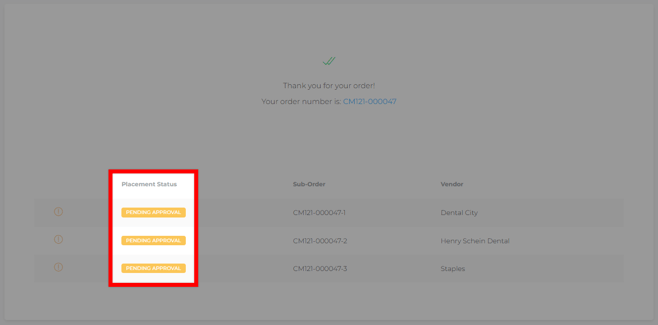
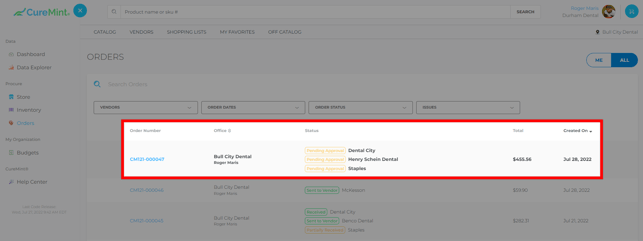
If you have already left this page, you can always navigate to Orders section under Procure in the left side panel to view the order:
Option 2a: The purchaser has the option to edit the order after placing it in CureMint to make it compliant with the Order Rule and manually send the order.
Please note: While the purchaser does have this option, the email notifying the approver of an Order Rule Violation has already been sent.
As the purchaser, if I want to edit my order after placing it in CureMint so that it no longer violates any Order Rules, navigate to the order by clicking the order number on the Orders page.
In this example, since the rule is based on total spend, to resolve this order rule the purchaser will need to reduce the total for the order, most likely by reducing quantity of items so the percent of the budget spent so far in the month is less than 75%.
To do this, expand the order details to view the Order Items. Then, you will need to expand the specific order item (you also have the option to Expand All) to view the editing capabilities.
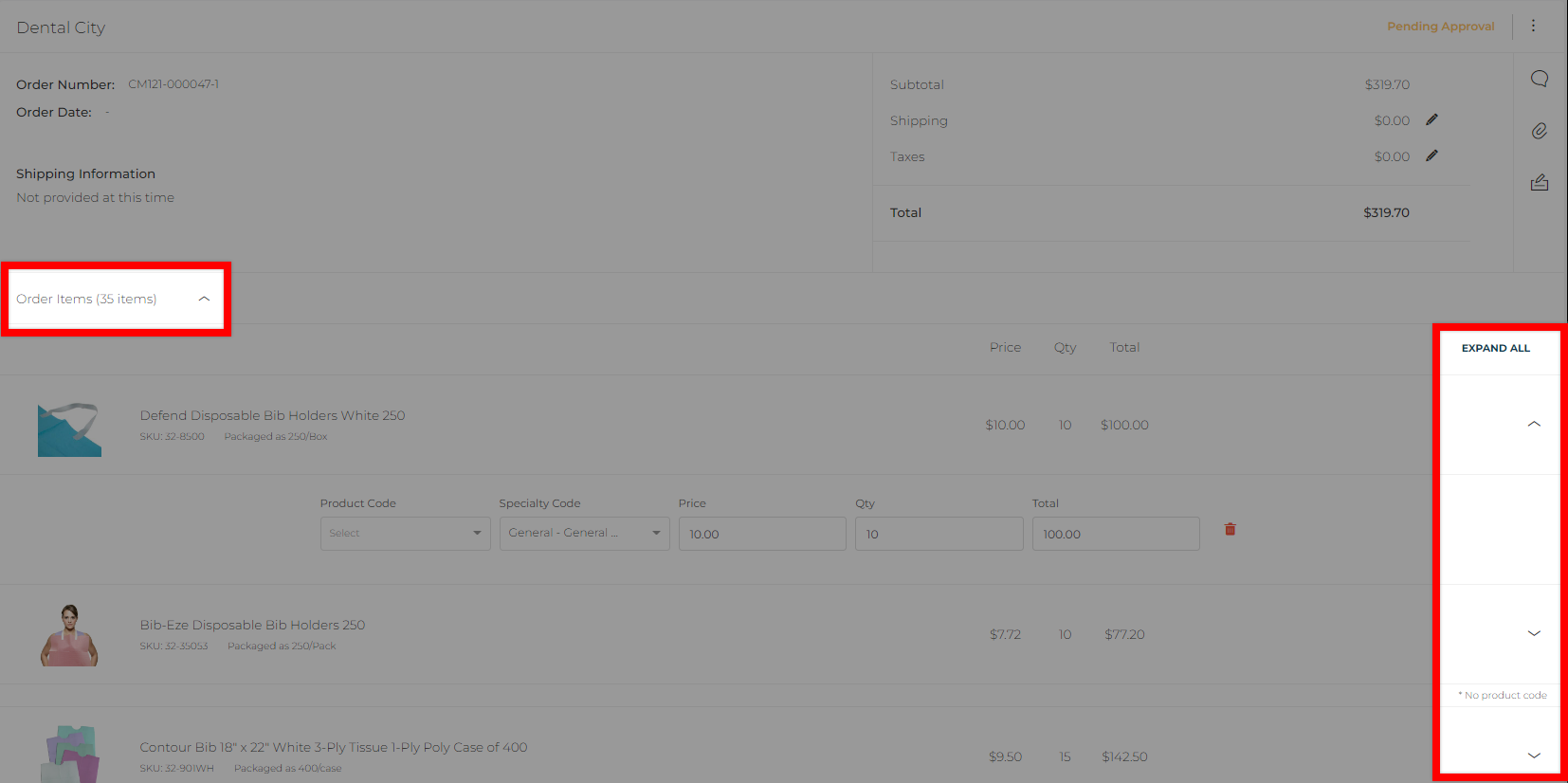
In this example, reducing the quantity of each of the items in the Dental City order, resolves the violation:
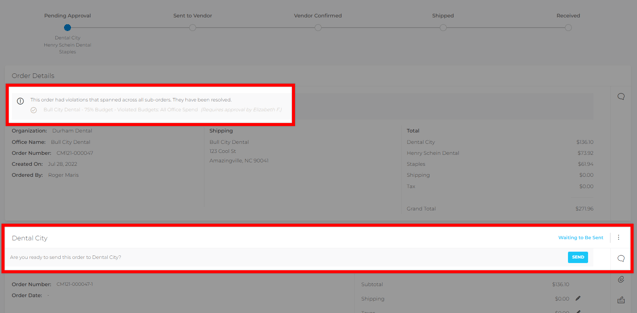
Now that the order no longer violates an Order Rule, the order status has changed from "Pending Approval" to "Waiting to be Sent" and the purchaser has the option to manually send the order(s) by selecting the blue Send button seen in the image above. Clicking Send will send the order directly to the vendor to be processed as it no longer requires approval.
Please Note: While the order no longer contains violations, the order will not be sent to the vendor unless you manually click the blue Send button.
Option 2b: If the purchaser takes no further action on the order, it will be sent to an approver to review before it gets sent to the vendor. This gives the approver the opportunity to review, edit, approve, or deny the order.
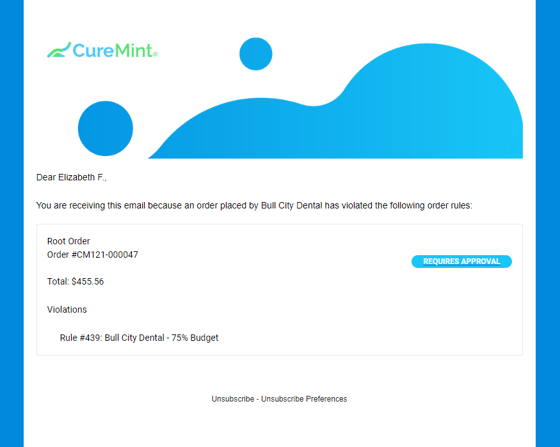
When a purchaser places an order that violates an Order Rule, the approver responsible for reviewing the order will receive an email notification that an order has been placed that requires approval. The approver has the option to approve, edit and approve, or deny the order. For more details on this process, please see our article Order Rules: Reviewing an Order that Violated an Order Rule.
Once the approver has reviewed the order and taken action on it, the purchaser will receive an email to notify them of the action taken by the approver.
Still have more questions? Please reach out to support@curemint.io.