-1.png?height=120&name=1f83348385b37474578a1d1ffd78b3c8adef03e0%20(1)-1.png)
The purpose of this article is to explain what the ‘Receive’ feature in CureMint is and how you can use it to track whether your products ordered through CureMint have been delivered to your office.
Once you have placed an order in CureMint, you can view your Order History by visiting the Orders under the Procure in the left-side panel menu.
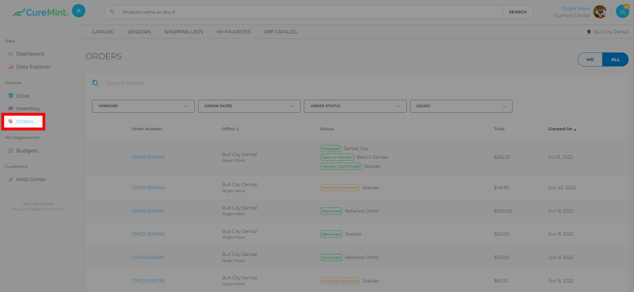
When an order, or certain items from an order, has been delivered to your office, you can mark that order (or part of it) as Received. You can see where some orders have been updated in the Order Status column in the image above. See below for an explanation of the different statuses:
Sent to Vendor: Your order has been submitted to the vendor but they have not yet confirmed receipt of the order.
Vendor Confirmed: The vendor has confirmed receipt of the order and is processing it in their system.
Shipped: The vendor has confirmed, processed, and shipped your order.
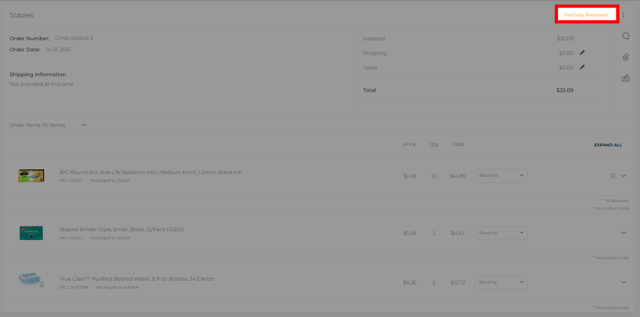
Partially Received: Part of the order has been delivered to the office and members of your team have marked those items as 'Received' in CureMint.
Received: Your entire order has been delivered to your office and a member of your team has marked all items in the order as 'Received.'
Rejected: Your order has been cancelled or returned and you no longer want it tracked in your budget. If you reject an order, the total amount from that order will be deducted from your spend total in CureMint.
To update the status of an order to received, click on the Order Number for the order you would like to update.
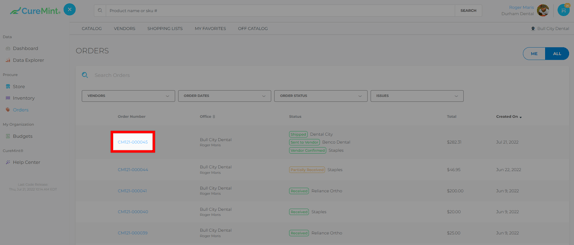
This will take you to the Order Details page, where your order will be broken down by vendor.
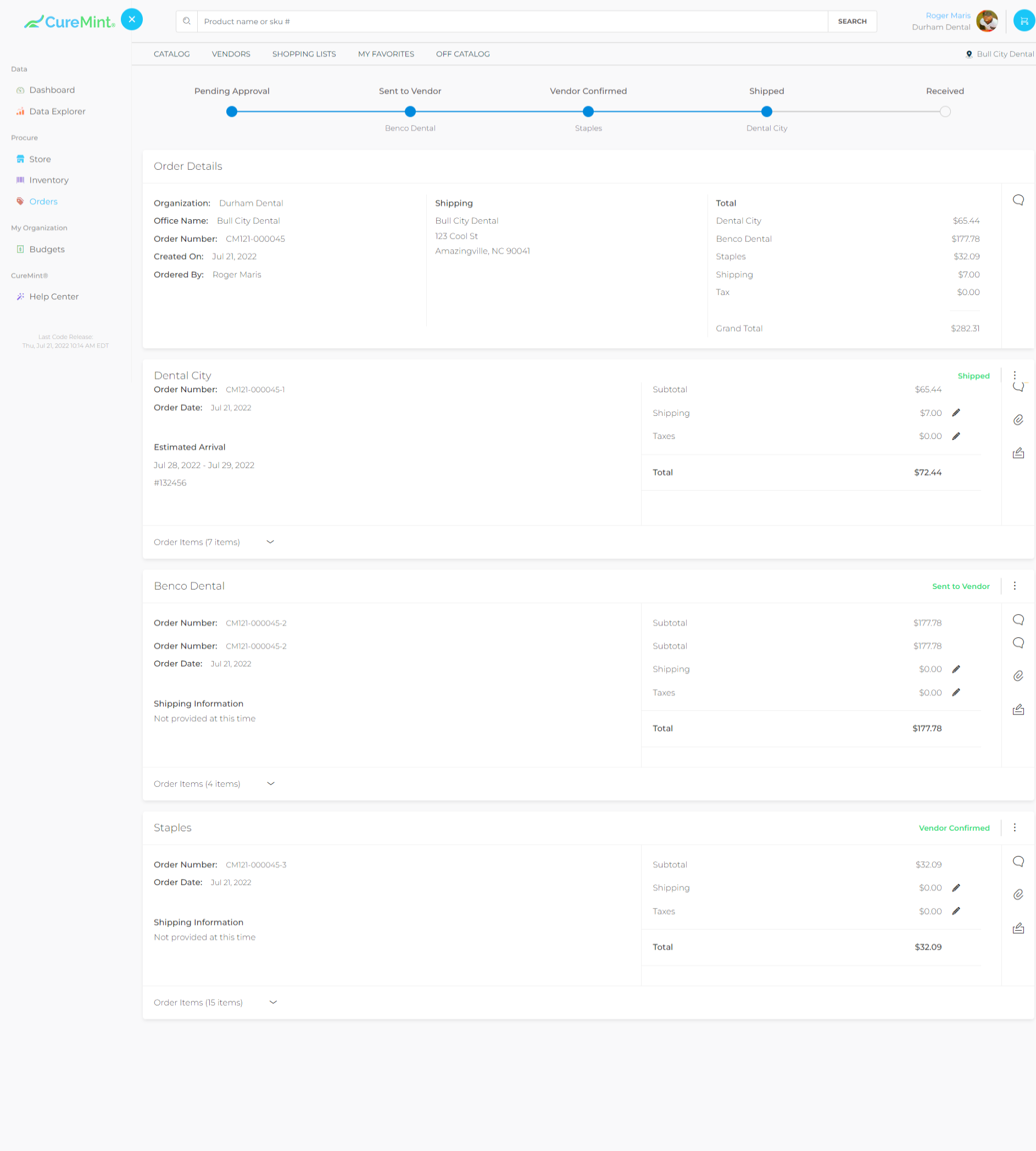
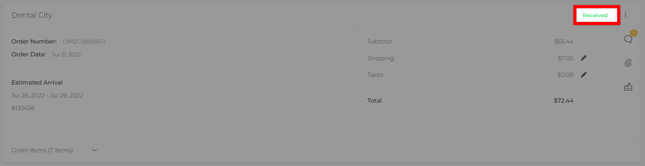
In this example, if your Dental City order has been delivered in its entirety, you can update the whole order by clicking the three dots in the upper-right corner of the Dental City section and selecting ‘Receive All.’
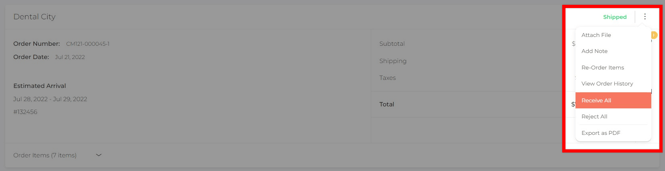
This will change the order status from Shipped to Received:
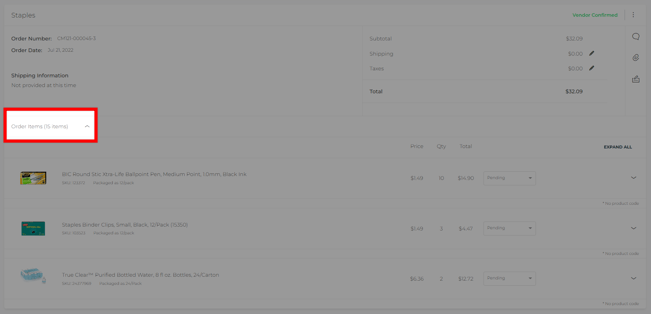
If you have placed an order and only part of the order has been delivered to the office, you also have the option to mark only the items in that delivery as Received. To do this, you need to view the itemized order for by selecting Order Items.
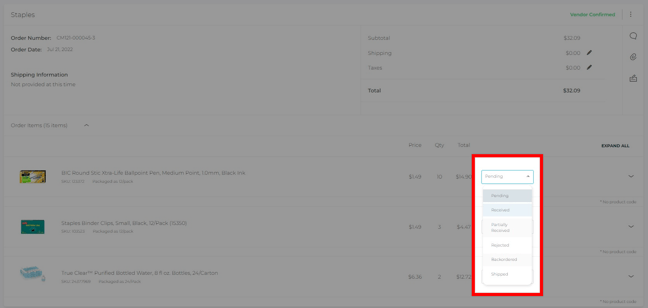
Until you update the status of these items, they will all be listed as ‘Pending.’ You can update the status by selecting a new status from the dropdown menu.
The Order Status displayed for the whole order on the main Order History page will update accordingly as you continue to mark items/orders as Received.
Still have more questions? Please reach out to support@curemint.io.