-1.png?height=120&name=1f83348385b37474578a1d1ffd78b3c8adef03e0%20(1)-1.png)
Sync status icons are used to indicate where a bill is in syncing it to an accounting software. There are 7 different statuses each with a different meaning.
Last Updated: February 6, 2024
Table of Contents
Sync Status Icons
The sync status icons serve as indicators of a bill's current status in relation to syncing it with an accounting software.
There are 7 different sync statuses that can be shown:
- Not Synced
 Not Connected
 Unable to Sync
 Syncing
 Out of Sync
 Sync Error
 Synced
They can be found:
- On the bill list page as the first column on the table
- One the bill detail page under the bill title
Not Synced
A bill with the "Not Synced" sync status means that the bill has never been synced with an accounting software before.
This icon will appear when the following conditions are met:
- The bill has never been synced before
- There is an entity associated with the bill
- The selected entity is connected to an accounting software
- There are no proactive issues that prevent the bill from being synced
This status does not have an icon visible on the bill list page, instead, the rows with bills not synced will not have an icon in that column.
Filtering on the bill list page by the "Not Synced" filter under Sync Status will display all of the bills that have not been synced.
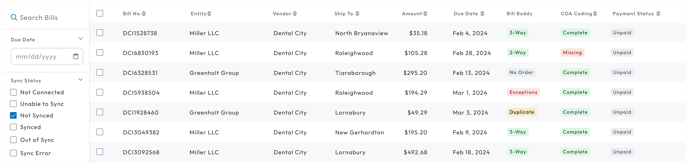
A grey badge will appear on the bill detail page under the Sync Status section with the text "Not Synced."

 Not Connected
A bill that has the "Not Connected" sync status means that there is not an entity on the bill connected with an accounting software.
There are two reasons this icon can appear:
- There is no entity selected on the bill
- The entity selected on the bill has not been set up with an integration to an accounting software.
This status is indicated by a grey circle with a line through it on the bill list page.
Filtering on the bill list page by the "Not Connected" filter under Sync Status will display all of the bills without an accounting software connection.
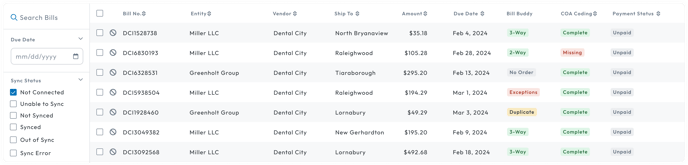
A grey badge will appear on the bill detail page under the Sync Status section with the above icon and the text "Not Connected."

 Unable to Sync
A bill that has the "Unable to Sync" status means that there is an issue that prevents the bill from being synced with an accounting software.
There are certain restrictions accounting softwares have about the data it requires on a bill. These restrictions vary between the different accounting softwares. Ones that we are able to know ahead of time are proactive errors. If we know an accounting software requires a certain piece of information, we won't allow the bill to sync until that piece of information has been adjusted.
The reason for the unable to sync badge will be displayed on the bill with a red diamond with an exclamation mark next to the issue under the bill tab.
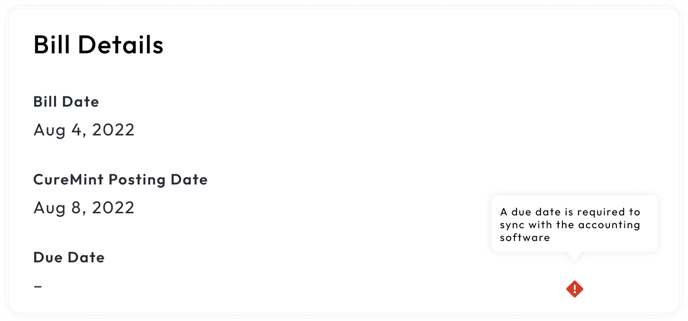
Common reasons why this status appear are:
- Not all line items have a chart of accounts selected
- Not all selected charts of accounts are mapped to the accounting software
- There is no due date selected on the bill
This status is indicated by a red diamond with an exclamation mark on the bill list page.
Filtering on the bill list page by the "Unable to Sync" filter under Sync Status will display all of the bills with a proactive error.
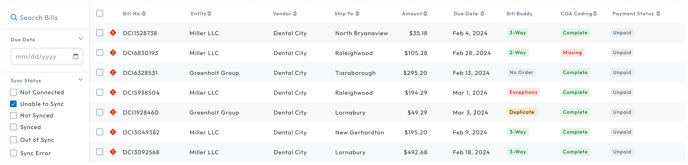
A red badge will appear on the bill detail page under the Sync Status section with the above icon and the text "Unable to Sync."

 Syncing
A bill that has the "Syncing" status means that the bill is in the process of syncing with the accounting software.
This icon will only appear if a user has started the process of syncing the bill with the accounting software.
This status is indicated by a grey spinning loader on the bill list page.
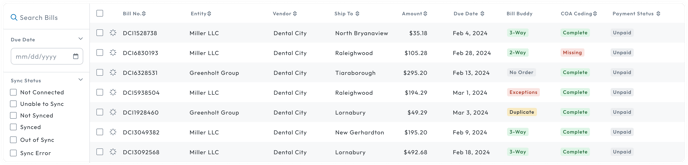
A grey badge will appear on the bill detail page under the Sync Status section with a sync icon and the text "Syncing"

 Out of Sync
A bill that has the "Out of Sync" status means that the bill has been updated in CureMint since the last time it was synced with the accounting software.
This icon will appear when the following conditions are met:
- The bill has been successfully synced with an accounting software
- Information was changed on the bill after if was synced
This status is indicated by a yellow triangle with an exclamation mark on the bill list page.
Filtering on the bill list page by the "Out of Sync" filter under Sync Status will display all of the bills that have been updated in CureMint after they have been synced.
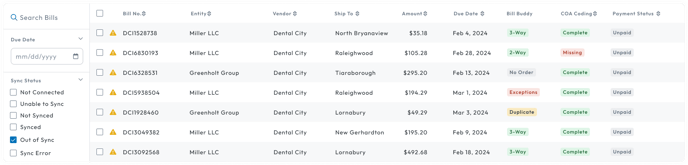
A yellow badge will appear on the bill detail page under the Sync Status section with the above icon and the text "Out of Sync."

 Sync Error
A bill that has the "Sync Error" status means that the bill had an issue when trying to sync with the accounting software.
A common reason is due to a setting set up within the accounting software that is custom to the organization. These are settings that we are unable to know ahead of time, which produce reactive errors.
Common reasons why this status appear are:
- There is a required field in the accounting software that has been specially set up by your organization.
- The bill date is outside of the accounting period in the accounting software
- There was a timeout issue while trying to sync the bill
- There is maintenance going on with the accounting software
This status is indicated by a red sync icon with an exclamation mark on the bill list page.
Filtering on the bill list page by the "Sync Error" filter under Sync Status will display all of the bills that have had an issue when they attempted to sync with the accounting software.
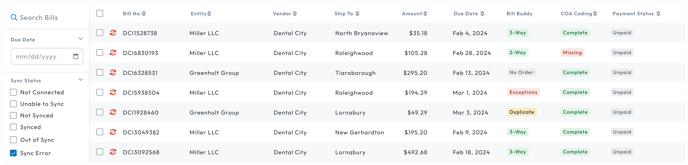
A red badge will appear on the bill detail page under the Sync Status section with the above icon and the text "Sync Error."

 Synced
A bill that has the "Synced" status means that the bill has successfully synced to an accounting software.
This status is indicated by a green circle with a check mark on the bill list page.
Filtering on the bill list page by the "Synced" filter under Sync Status will display all of the bills that have had successfully synced with an accounting software.
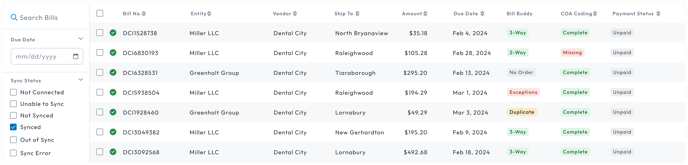
A green badge will appear on the bill detail page under the Sync Status section with the above icon and the text "Synced."

This form is used for documentation feedback only. For more help email help.me@curemint.io