-1.png?height=120&name=1f83348385b37474578a1d1ffd78b3c8adef03e0%20(1)-1.png)
Last Update: February 23, 2024
Table of Contents
- Removing a Chart of Accounts Association
- Removing from the Accounting Categories Tab
- Removing from an Order Item
- Removing from a Bill Item
- Removing from an Off-Catalog Item
A chart of accounts association simplifies the process of automatically applying a chart of accounts to an item whenever it appears. If the item is no longer required to have an association, it can be easily removed. There are multiple methods to remove the association.
Removing a Chart of Accounts Association
Removing a chart of accounts association is an action that can be taken at any point in time. It will stop the association from automatically applying to future records and can be removed from existing records.
A chart of accounts association can be removed the following ways:
- On the Accounting Categories page under the associated Chart of Accounts
- On an Order where the item appears
- On a Bill where the item appears
- Entering the item in the off-catalog form
Removing from the Accounting Categories Tab
To remove a chart of accounts association on the accounting categories tab:
- In your CureMint account, navigate to Accounting Categories.
- Select the Chart of Accounts the item is associated with
- Search the item's SKU or description in the search bar
- Click on the Remove icon in the item's row
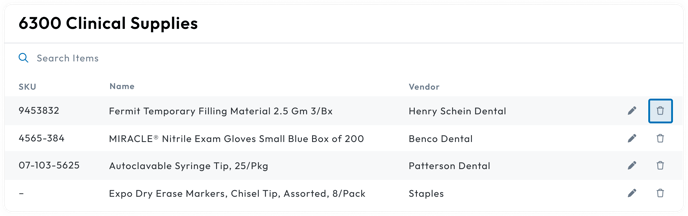
- A Remove Association modal will appear
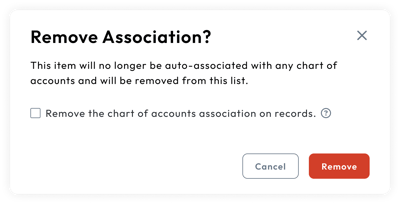
- Decide on how to remove the the association
- Remove the chart of accounts association on records: By checking this box, the chart of accounts association will be removed on all existing records that contain the item and are one of the following:
- An order without a linked bill
- An order linked to a draft bill
- An order linked to an open bill
- A bill in the draft stage
- A bill in the open stage
- Remove the chart of accounts association on records: By checking this box, the chart of accounts association will be removed on all existing records that contain the item and are one of the following:
Please Note: For organizations with the Procurement subscription, selecting the checkbox will update all existing orders where the item exists.
- Click on the Remove button.
Removing from an Order Item
To remove a chart of accounts association on an order item:
- In your CureMint account, navigate to Orders.
- Find the desired order and click on the Order Number.
- On the order detail page, find the Suborder to the desired vendor.
- Next to Order Items on the Suborder, click on the Dropdown Button.
- On the Order Item row, click on the Dropdown Button on the far right.
- Click on the "X" icon in the Chart of Accounts dropdown.
- A Remove Association banner will appear.
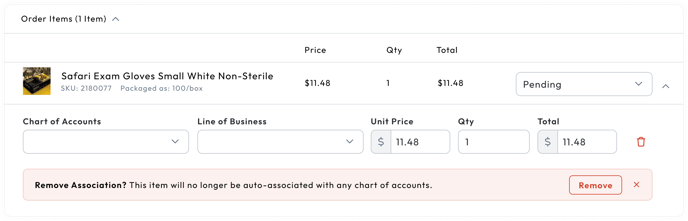
- Click Remove in the Remove Association banner.
Please Note: If you do not wish to remove the association and only remove it on the single order, click the "X" button in the banner.
- An Update Items modal will appear.
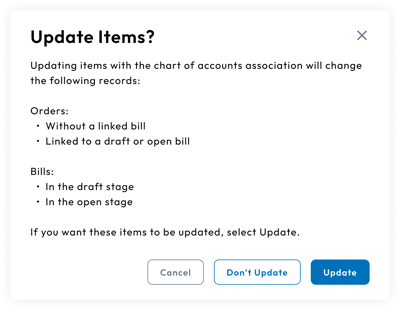
- Select one of the options in the Update Items Modal:
- Update: The update option will remove the chart of accounts association, the item will not have an association on all future records, and it will remove the association on existing records that contain the item and are one of the following:
- An order without a linked bill
- An order linked to a draft bill
- An order linked to an open bill
- A bill in the draft stage
- A bill in the open stage
- Update: The update option will remove the chart of accounts association, the item will not have an association on all future records, and it will remove the association on existing records that contain the item and are one of the following:
Please Note: For organizations with the Procurement subscription, selecting the Update option will update all existing orders where the item exists.
- Don't Update: The don't update option will remove the chart of accounts association and the item will not have an association on all future records. Currently existing records will not be affected.
Removing from a Bill Item
There are 2 ways to remove a chart of accounts association on a bill item:
- On an individual bill item
- Bulk updating bill items
Removing from an Individual Bill Item
To remove a chart of accounts association on an individual bill item:
- In your CureMint account, navigate to Bills.
- Find the desired bill and click on the Bill Number.
- Click on the Edit Bill button on the Bill tab.
Please Note: If the bill is in the inbox, it will automatically open in the Edit state.
- The Bill Modal will open.
- Scroll down in the Bill Modal to the Line Items section.
- Find the desired Bill Item.
- Click on the "X" icon in the Chart of Accounts Dropdown.
- A Remove Association banner will appear.
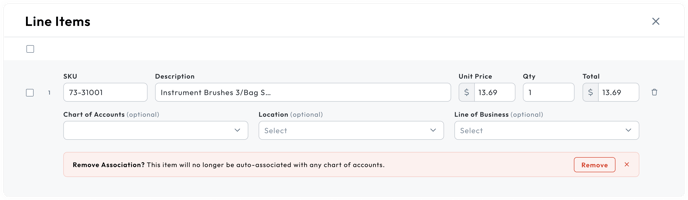
- Click Remove in the Save Association banner.
Please Note: If you do not wish to remove the association and only remove it on the single order, click the "X" button in the banner.
- An Update Items modal will appear.
- Select one of the options in the Update Items Modal:
- Update: The update option will remove the chart of accounts association, the item will not have an association on all future records, and it will remove the association on existing records that contain the item that are one of the following:
- An order without a linked bill
- An order linked to a draft bill
- An order linked to an open bill
- A bill in the draft stage
- A bill in the open stage
- Update: The update option will remove the chart of accounts association, the item will not have an association on all future records, and it will remove the association on existing records that contain the item that are one of the following:
-
- Don't Update: The don't update option will remove the chart of accounts association and the item will not have an association on all future records. Currently existing records will not be affected.
Bulk Removing from Bill Items
There are two places to bulk remove bill item's chart of accounts associations:
- In the bill modal
- On the bill detail page
Please Note: If the bill is in the Inbox, chart of accounts associations can only be bulk removed in the bill modal.
Bulk Removing in the Bill Modal
To bulk remove chart of accounts associations in the bill modal:
- In your CureMint account, navigate to Bills.
- Find the desired bill and click on the Bill Number.
- Click on the Edit Bill button on the Bill tab.
- The Bill Modal will open.
- Scroll down in the Bill Modal to the Line Items section.
- Select the checkbox next to the desired Bill Items.
- A Bulk Actions menu will appear.
- Click on the Line Item Actions dropdown.
- Click on the Edit Chart of Accounts option in the dropdown.
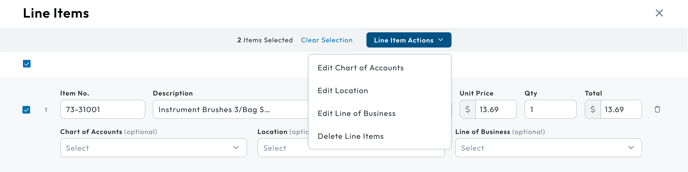
- An Edit Chart of Accounts modal will appear.
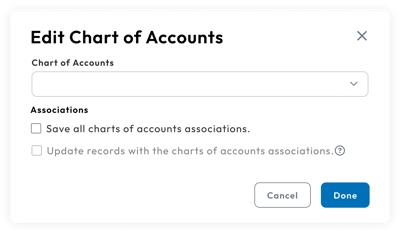
- Leave the Chart of Accounts Dropdown empty.
- Select the desired save options under the Associations section.
- Save all charts of accounts associations: By checking this box, the chart of accounts association will be removed and will not have an association on all future records that contain the item. Currently existing records will not be affected.
- Update records with chart of accounts association: This option is only available if the first checkbox is selected. By checking this box, the chart of accounts association will be removed on existing records that contain the item and are one of the following:
- An order without a linked bill
- An order linked to a draft bill
- An order linked to an open bill
- A bill in the draft stage
- A bill in the open stage
Please Note: Leaving both of the options unchecked will only update the current bill with the selected chart of accounts. The association will not be saved, existing records will not be updated, and future records will still automatically select the chart of accounts for the item.
- Click on Done to remove the associations.
Bulk Removing on the Bill Detail Page
To bulk remove chart of accounts associations on the bill detail page:
- In your CureMint account, navigate to Bills.
- Find the desired bill and click on the Bill Number.
- Scroll down in the Bill tab to the Line Items section.
- Select the checkbox next to the desired Bill Items.
- A Bulk Actions menu will appear.
- Click on the Line Item Actions dropdown.
- Click on the Edit Chart of Accounts option in the dropdown.
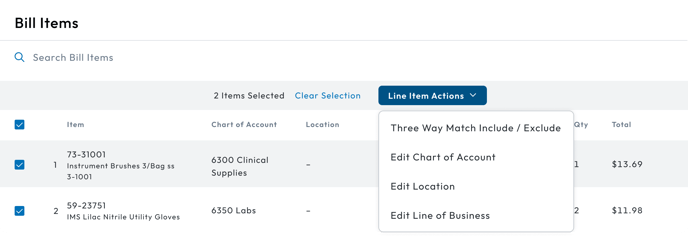
- An Edit Chart of Accounts modal will appear.
- Leave the Chart of Accounts Dropdown empty.
- Select the desired save options under the Associations section.
- Save all charts of accounts associations: By checking this box, the chart of accounts association will be removed and will not have an association on all future records that contain the item. Currently existing records will not be affected.
- Update records with chart of accounts association: This option is only available if the first checkbox is selected. By checking this box, the chart of accounts association will be removed on existing records that contain the item and are one of the following:
-
-
- An order without a linked bill
- An order linked to a draft bill
- An order linked to an open bill
- A bill in the draft stage
- A bill in the open stage
-
Please Note: Leaving both of the options unchecked will only update the current bill with the selected chart of accounts. The association will not be saved, existing records will not be updated, and future records will still automatically select the chart of accounts for the item.
- Click on Done to remove the associations.
Removing from an Off-Catalog Item
To remove a chart of accounts association on an off-catalog item:
- In your CureMint account, navigate to Store.
- Click on the Off-Catalog tab.
- Select a Vendor in the dropdown.
- Enter in a SKU and select the option that appears in the dropdown.
- Click on the "X" icon in the Chart of Accounts dropdown.
- A Remove Association banner will appear.

- Click Remove in the Remove Association banner.
Please Note: If you do not wise to remove the association and only apply it to the one time off-catalog item, click the "X" button in the banner.
- An Update Items modal will appear.
- Select one of the options in the Update Items Modal:
- Update: The update option will remove the chart of accounts association, the item will not have an association on all future records, and it will remove the association on existing records that contain the item that are one of the following:
- An order without a linked bill
- An order linked to a draft bill
- An order linked to an open bill
- A bill in the draft stage
- A bill in the open stage
- Update: The update option will remove the chart of accounts association, the item will not have an association on all future records, and it will remove the association on existing records that contain the item that are one of the following:
Please Note: For organizations with the Procurement subscription, selecting the Update option will update all existing orders where the item exists.
-
- Don't Update: The don't update option will remove the chart of accounts association and the item will not have an association on all future records. Currently existing records will not be affected.
This form is used for documentation feedback only. For more help email help.me@curemint.io