-1.png?height=120&name=1f83348385b37474578a1d1ffd78b3c8adef03e0%20(1)-1.png)
Last Updated: Jan 22, 2025
Table of Contents
- Item Quantity Exception Type
- Checking the Bill Item's Quantity
- Reviewing a Quantity Issue
- Resolving a Quantity Exception
- Leaving a Quantity Exception
- Disputing a Quantity Exception
Bill exceptions appear on bills as part of the 3-way match process to ensure the bill matches with the order and receipt to make sure you aren't overpaying for items you've ordered. The Item Quantity Exception Type appears when a bill item’s quantity is greater than the linked order item’s quantity. There are several scenarios that can cause a quantity exception, and a different way to address the issue depending on the scenario.
Item Quantity Exception Type
The Item Quantity Exception Type occurs when the bill item's quantity is greater than the order item's quantity.
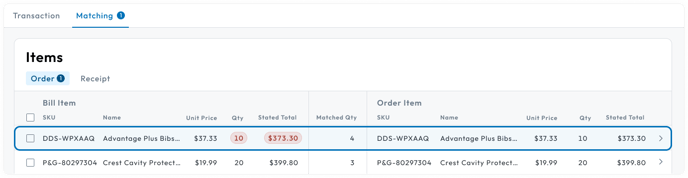
It is displayed on the Matching Tab under the Order section with an error badge around the bill item’s quantity.
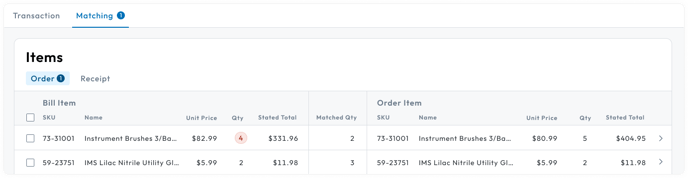
More than one bill can be linked to the same order, and all of the bills associated with the order can have a bill item on them linked to the same order item. The quantities of the bill items are added together, and, if the quantity total goes over the ordered quantity, the bill item that triggers the quantity amount to go over triggers the exception. For example:
- On an order you have item 123456 Blue Gloves with an ordered quantity of 5.
- Bill 1 comes in with bill item 123456 Blue Gloves with a quantity of 3.
- Bill 2 comes in with bill item 123456 Blue Gloves with a quantity of 3.
- Bill 1 will not have a quantity exception because the quantity on the bill item is less than the quantity on the order item.
- Bill 2 will have a quantity exception because the bill item's quantity of 3 is added with the previous bill item's quantity of 3 to get 6, which is over the order item's quantity of 5.
The quantity of bill items able to be linked to the order item is shown in the Matched Quantity column on the Matching tab. The amount of bill items that can be matched to an order item is equal to the quantity of the order item. If other bill items have already been linked to the order item, the matched quantity can be less than the bill item’s quantity. For instance, based on the above example, Bill 2’s bill item 123456 would have a matched quantity of 2.
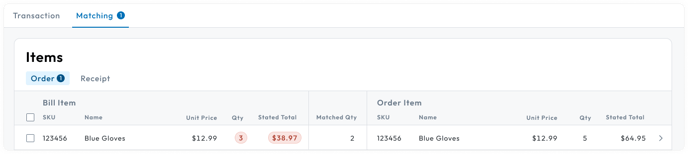
When a bill item is linked to an order item, the quantities are compared to each other. Depending on the variance, the following scenarios will occur:
- If the total quantity on all connected bill items is greater than the order quantity, a quantity exception is thrown.
- If the total quantity on all connected bill items is less than or equal to the order item quantity on, there is no quantity exception.
Some reasons why the bill item's quantity might be different from the order item's quantity are:
- The vendor has a minimum order quantity that they have to follow
- There was a mismatch in unit of measure between the order and vendor's system. For example, you ordered in Each and the vendor always ships in Boxes.
- The vendor sent a free item
- The vendor entered an incorrect quantity amount on the bill
Checking the Bill Item's Quantity
Sometimes, the bill item's quantity can be transcribed incorrectly from the bill. First, check to make sure the bill item's quantity matches the quantity that appears on the attachment.
To compare the quantity on the transcribed bill item to the quantity of the item on the attached document, follow the steps below.
- Click on the Attachments icon on the right drawer.
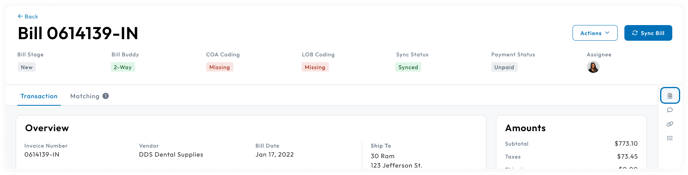
- The Attachment drawer will open.
- Compare the quantity of the item in the attachment to the quantity of the transcribed item.
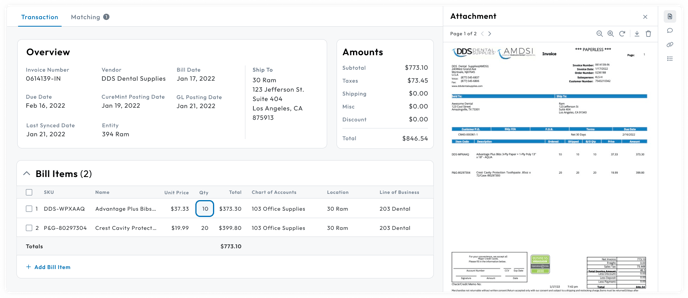
If the quantities match, move on to the next section. If the transcription of the quantity is inaccurate, follow the steps below to update it.
- Make sure you are under the Transaction tab of the bill page.
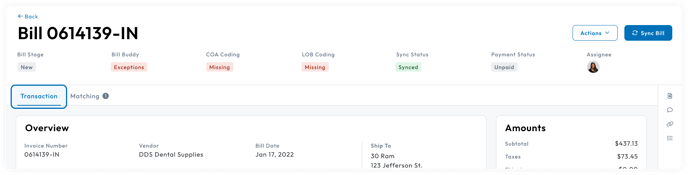
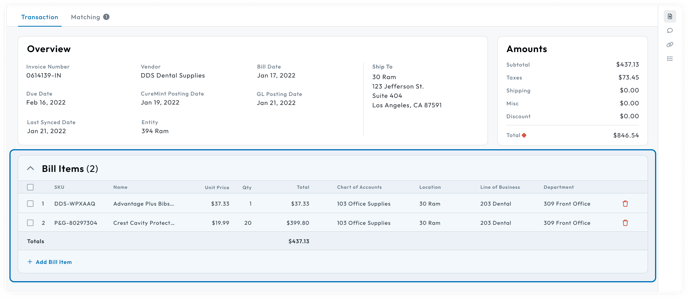
- Go to the Bill Items table and find the bill item.
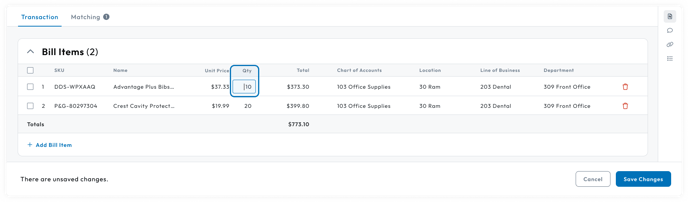
- Update the quantity of the bill item in the table.
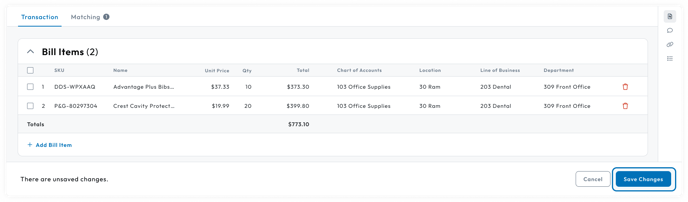
- Click the Save Changes button in the bottom footer.
Go to the Matching tab and find the bill item to see if the Quantity Exception has been resolved.
- If the Exception tag on the bill item’s quantity is gone, the bill item's quantity is now less than or equal to the order item's quantity and no other exceptions exist.
- If the Exception tag on the bill item’s quantity is still present, follow the steps for reviewing a quantity issue.
Reviewing a Quantity Issue
It's important to view the quantity variance between the bill item and the order item to ensure you don't overpay the vendor. To review the quantity exception:
- Go to the Matching Tab
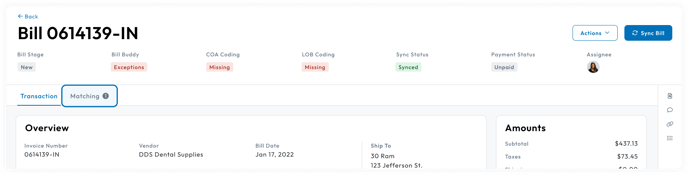
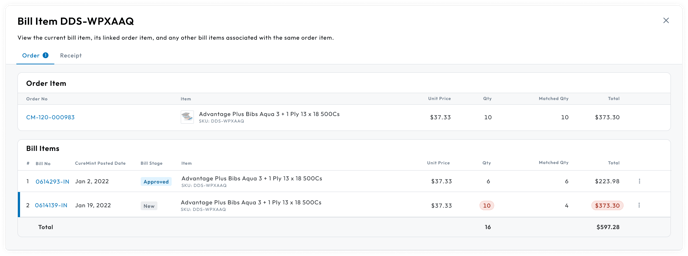
- Click on the Bill Item’s row under the Order Tab
- The Bill Item Detail Modal will appear
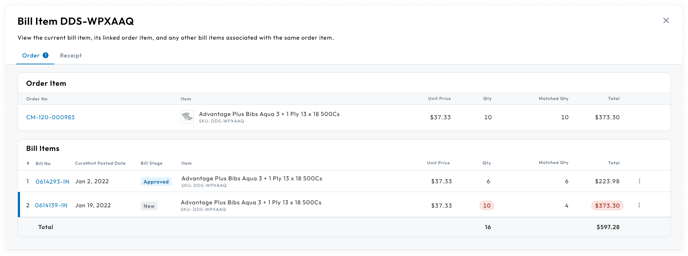
- The modal lists all bill items in order of the bill’s created date that are connected to the linked order that have a bill item connected to the same order item of the current bill item that has the quantity issue.
After viewing the variance in quantities, ask yourself the following questions to determine if the bill item's quantity is incorrect:
- Do I have a bill item with a total of $0 in the list?
- If yes and the quantity is over by that quantity of the $0 item, the vendor likely sent a freebie.
- Are one of the bills a duplicate?
- If yes and the quantity is over by the quantity on the duplicate, voiding the duplicate bill should resolve the problem.
If you determine the item is a freebie, follow the instructions for resolving a quantity exception.
If you determine the quantity on the bill is incorrect or are unsure, then determine how you want to proceed based on the variance of the bill.
- If the variance is small enough that you don't mind paying the bill and don't want to dispute the overcharge later, follow the instructions for resolving a quantity exception.
- If the variance is small enough that you don't mind paying the bill but want to dispute the overcharge later, follow the instructions for leaving a quantity exception.
- If the variance is large enough that you want to withhold payment from the vendor and dispute the bill, follow the instructions for disputing a quantity exception.
Resolving a Quantity Exception
Resolving the item removes it from the 3-way matching algorithm which removes it from having any exceptions. This option should only be used if you are fine with paying the bill and potentially talking to the vendor about the issue later.
Please Note: If there are other exceptions on the bill item, look into those first before excluding the item. Excluding the item will remove all exceptions associated with it.
If there are no other exceptions on the bill, the bill should be moved into the approved bill stage. This option should only be used if:
- The item was a freebie
- You are fine with paying the variance in pricing now and don't need to be reimbursed by the vendor
- Need to get a 2-way or 3-way match on the bill
| Pros | Cons |
|
|
To resolve the item:
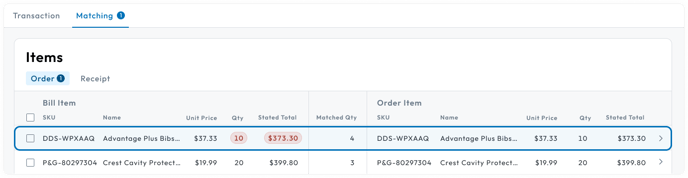
- Click on the Bill Item’s row under the Order Tab
- The Bill Item Detail Modal will appear
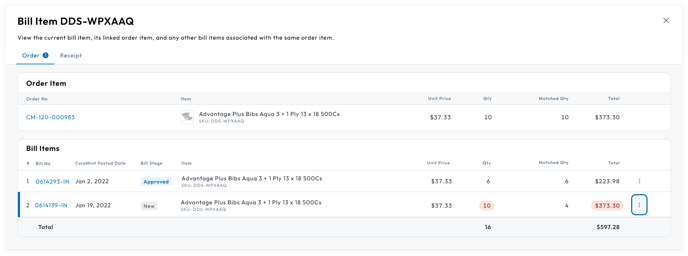
- Click on the Menu icon in the Bill Item’s table row
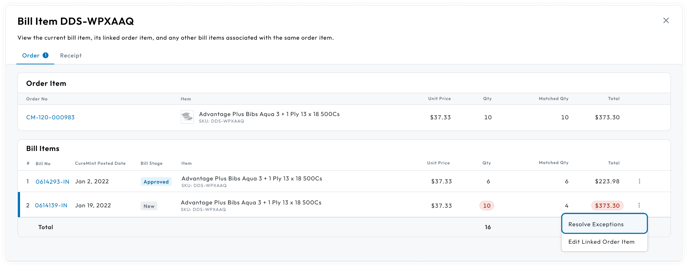
- Select the Resolve Exceptions option
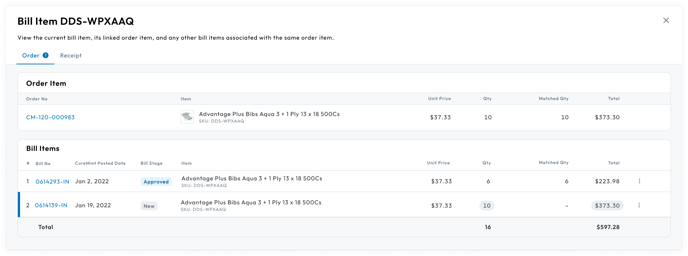
- The exceptions are resolved and the matched quantity is removed. Exceptions will appear in a neutral tag to indicate there was an exception that was resolved.
Leaving a Quantity Exception
Leaving the exception keeps the exception tag visible on the bill. This option should only be used if you are fine with paying the bill and potentially talking to the vendor about the issue later. If there are no other exceptions on the bill, it should be moved into the approved bill stage. We recommend leaving a comment on the bill about why an exception is still present if choosing this method. This option should only be used if:
- You are fine with paying the variance in pricing now and bringing it up with the vendor at a later time
- Don't need to get a 2-way or 3-way match on the bill
- Want to keep visibility into the exception
| Pros | Cons |
|
|
Disputing a Quantity Exception
Disputing the item should be done if the variance is above your accepted limit. The bill should be moved to the blocked bill stage while talking with the vendor. We recommend leaving a comment on the bill about why the bill is in the blocked stage if choosing this method.
| Pros | Cons |
|
|
This article is used for documentation feedback only. For more help email help.me@curemint.io