-1.png?height=120&name=1f83348385b37474578a1d1ffd78b3c8adef03e0%20(1)-1.png)
Last Updated: Jan 22, 2025
Table of Contents
Exceptions appear on bill items as part of the 3-way match process to ensure the bill matches with the order and receipt to make sure you aren't overpaying for items you've ordered. There are four different exception types that can appear on a bill depending on the issue. Each exception has its own method of determining how to resolve it based on the overall variance and your unique organizational setup.
What is an Exception?
Exceptions are part of the 3-way match process that accounts payables teams use to ensure the bill matches with the order and receipt. Exceptions appear when there is a variance between the records indicating the bill needs review. Reviewing exceptions can help uncover mistakes made by vendors and prevent the organization from overspending on products.
Exceptions in CureMint
Exceptions appear in CureMint when a bill is linked to an order and there is a variance between the two. Exceptions appear on the bill item level.
A bill with exceptions is indicated by the red exceptions badge.

If there is an exception, the bill will have the Bill Buddy status Exceptions.
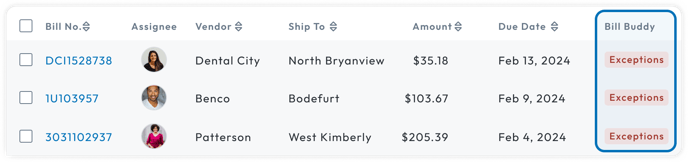
To view all bills that have exceptions, you can filter by the Bill Buddy status Exceptions under the filters.

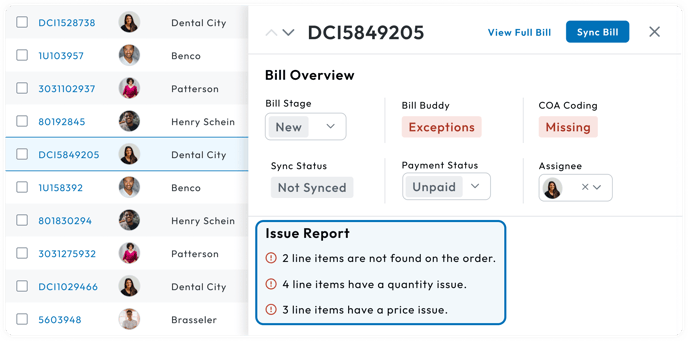
To quickly identify the types of exceptions on a bill, you can click the row of a bill to view a bill overview. The types and count of exceptions on the bill are listed under the Issue Report.
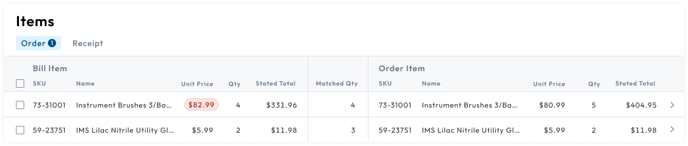
When viewing a bill detail page, all exceptions will appear on the Matching Tab. If the bill has items with exceptions, a badge appears next to the matching tab with the number of items that have exceptions. It will also appear next to the order tab in the items table. Receipt matching does not throw exceptions.
Please Note: If an item has more than 1 exception (such as a quantity exception and a total exception) it will only count as 1. The count is number of items with exceptions, not total number of exceptions.

Bill items that have exceptions will have an error tag where the exception occurs. For example, if a bill item has a unit price exception, an error tag will appear on the bill item's unit price.
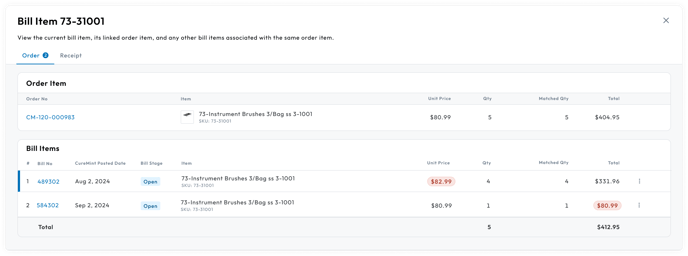
To view the exceptions on the bill item in more detail, you can click on the bill item which will open the Bill Item Detail Modal. Exceptions are listed under the Bill Items section in the modal in an error tag.
Exception Types
It is important to know the cause of the exception to know how to address it. Within CureMint, there are 4 different exception types that can appear on bill items. The exception types are:
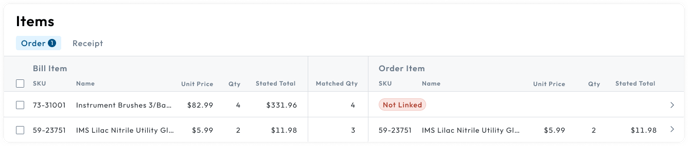
- Item Not Linked: The bill item was unable to be associated with an order item.
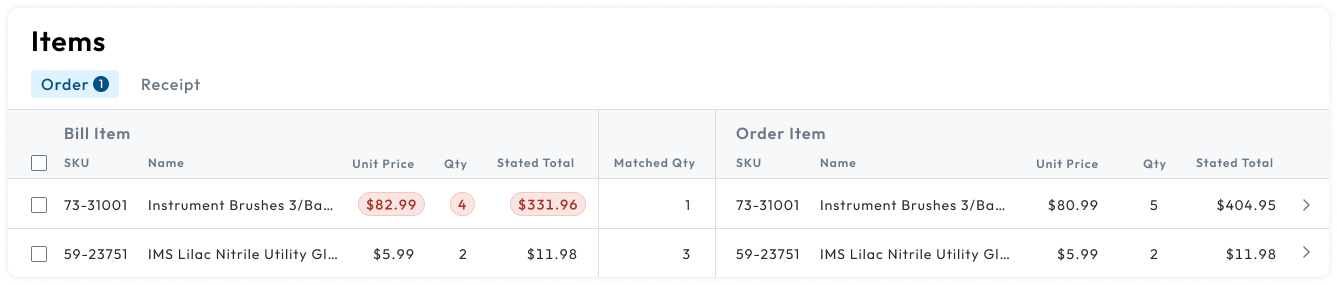
- Unit Price: The bill item's unit price is greater than the order item's unit price.
- Quantity: The bill item's quantity is greater than the order item's quantity.
- Total: The bill item's total is greater than the order item's total.
If a bill item has the Item Not Linked exception, that is the only exception that can be associated with the item. It is displayed in the Matching Tab under the Order Item column.
Bill items that are linked to an order item can potentially have all three of the other exception types: Unit Price, Quantity, and Total. The exceptions associated with the bill item are displayed in the Matching Tab under the Bill Item column.
Addressing an exception type depends on the scenario and the unique setup of each organization. Each exception type has their own methods to address them, but the basic steps of addressing an exception type are:
- Checking the Transcription: It's important to check that the information on the bill attachment was transcribed properly by comparing the information entered in CureMint with the information that appears on the bill.
- Comparing the Bill Item to the Order Item: Comparing the bill item to the order item provides more context about the issue to help determine how you want to proceed with addressing the issue.
- Determining Next Action: The action of addressing the issue is dependent on several factors around the exception type and how your organization is set up. Each action to address the issue has its pros and cons, and its important to determine how you want to resolve the exception type per scenario.
This article is used for documentation feedback only. For more help email help.me@curemint.io